



A FigJam mobile client review should confirm that the reviewer can find the right section, comment and frame version. However, a link that opens on an old frame does not settle that question. This guide supplies a small synthetic board manifest, a contact-sheet fallback and a blank device-test record for Nigeria-based freelancers.
Figma’s 20 November 2026 release notes describe new FigJam mobile navigation and collaboration features. They include comment indicators, a section-preview slider, a page dropdown and links to the page or section being viewed. Therefore, the announcement is a reason to check your review route, not proof that a particular client can use it.
FigJam mobile client review: define the object before the link
Start with a non-sensitive project alias, page, section, frame identifier and version. Then write the specific question you want answered. “Please review the design” leaves too many possible destinations. “Check the action position on B1-CTA v2” gives the reviewer an object they can name back to you.
Keep review scope separate from approval. A comment on an old frame might still contain useful feedback, but it does not automatically approve a later version. Nor does this product update announce a new approval system. Record any approval using the agreed project terms, the exact version and the decision’s scope.
Build a small practice board without client material
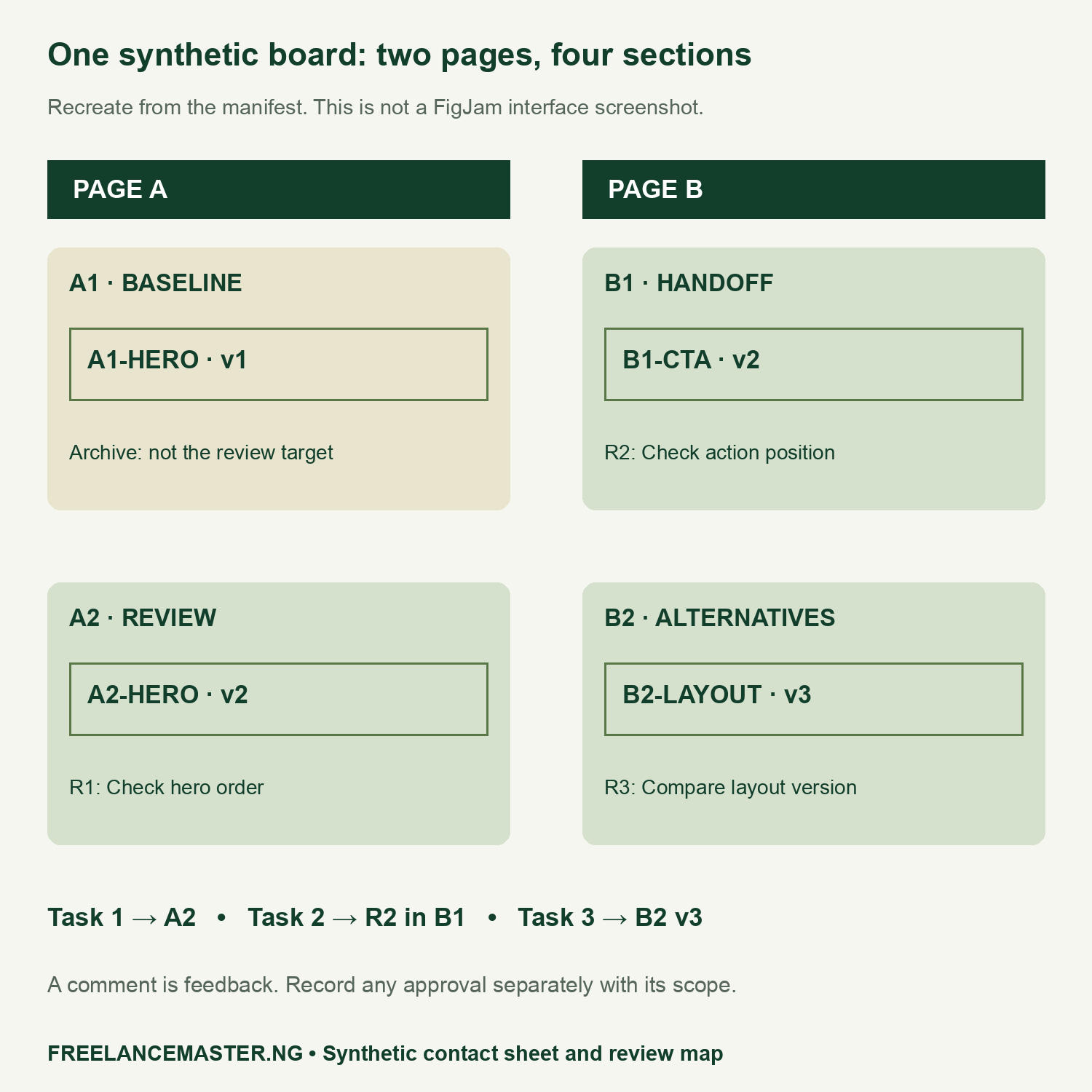
Our practice content has exactly two pages and two sections per page. Three seeded review items sit in A2, B1 and B2. Meanwhile, the A1 baseline remains visible as a wrong-destination trap. In particular, a reviewer who opens that old baseline has not completed the task of finding the current A2 review frame.
No live FigJam file, consenting participant trial or device timing study was created for this article. Instead, the downloadable manifest makes the fictional setup reproducible. Recreate those objects in your own empty practice file before running a real test. Do not copy confidential screens or change a real client board’s sharing settings for this exercise.
Test three tasks under the intended access role
Ask a consenting reviewer to use a device they already use. First, open the intended A2 section from the proposed review link. Second, find comment R2 in B1. Third, identify B2-LAYOUT v3 as the version under discussion. Let the reviewer attempt each task before offering help, then record exactly where help was needed.
Use the blank sheet to record device, app or browser version, access role and route. Mark unaided completion, a wrong destination, help needed or unavailable access distinctly. Leave elapsed seconds blank until measured. If someone cannot open the file because of permissions, do not relabel that as a navigation result.
The official mobile-app guide distinguishes viewing, navigation and available actions across file types. Check the current app and intended role directly. A feature shown for another file type or device does not establish parity for your client’s phone and route.
Use the fictional matrix to understand the record
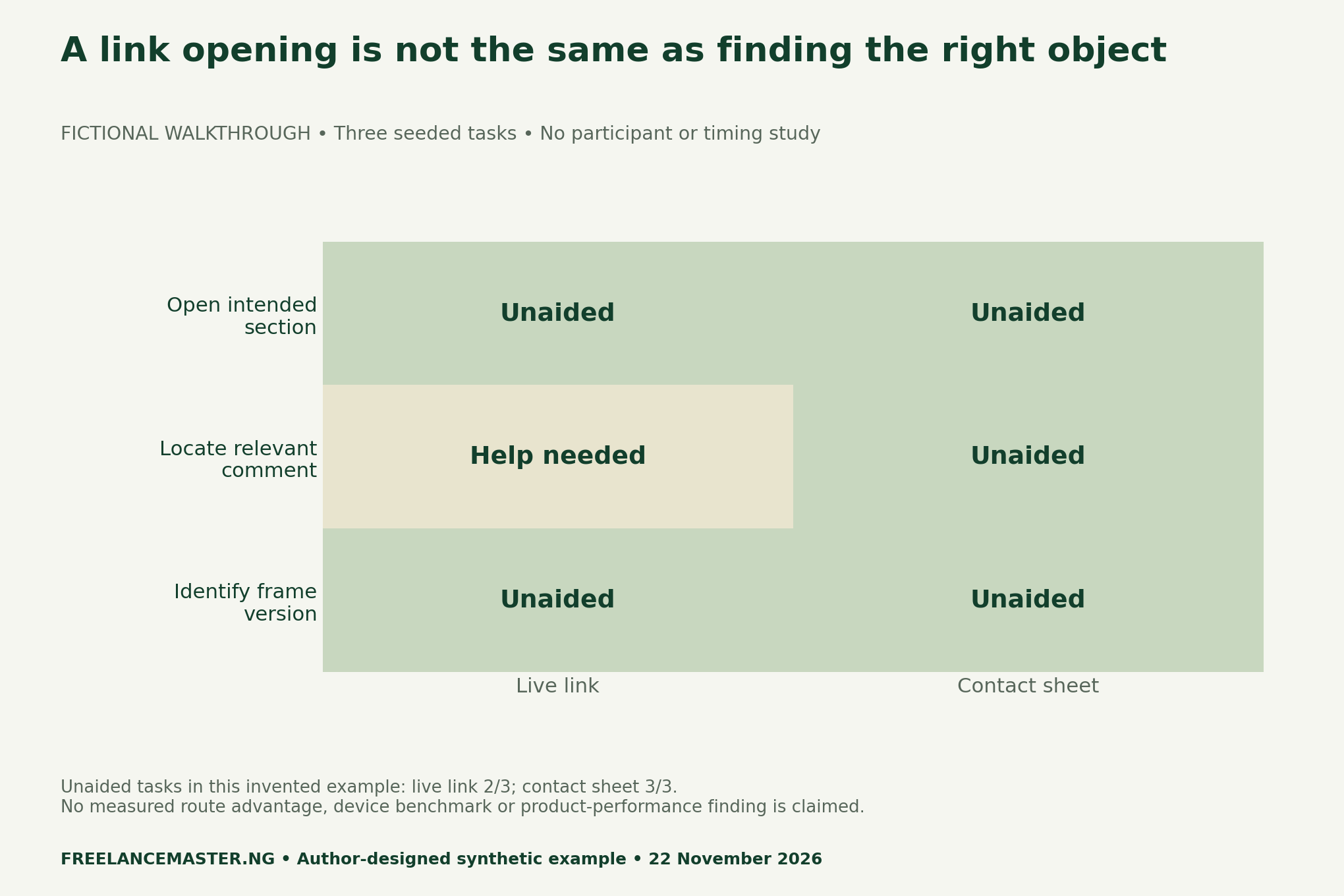
In the invented rows, the live route completes two of three tasks unaided and the contact sheet completes three of three. The arithmetic is 2 ÷ 3 × 100 ≈ 66.7% and 3 ÷ 3 × 100 = 100%. These percentages describe the fictional entries only; they are not observed usability statistics or a prediction for a client.
For that reason, we do not draw a paired performance-percentage chart or invent timing values. The matrix shows the status of each task instead. A real test could produce a different result, including failure on both routes. With one reviewer, even observed timings would remain personal and non-generalisable.
Prepare the fallback with the same content and clear versions
Make a compact, readable PDF or contact sheet from the same approved practice objects. Keep the page, section and version names visible. Ask equivalent tasks in a different order on the second route to reduce learning effects. Record the order so someone inspecting the sheet can see what happened first.
A fallback is useful only if its own labels and images remain readable on the intended phone. Check file size and actual access rather than assuming a static export works offline or without permissions. If the fallback contains old frames, it can repeat the same wrong-version problem as the live board.
Finally, the acknowledgement template separates project alias, object version, review scope, feedback or approval, date and next action. It is a communication aid rather than a contract amendment. Avoid including private account details, real client names or unrestricted project links in a public portfolio copy.
Choose the route from the test, not the release headline
If the reviewer reaches the intended objects unaided under the agreed role, document that result for the tested setup. If help is required, improve the destination instructions or offer the checked fallback. If access is unavailable, leave that route unresolved. Do not make the client’s real board public simply to make the test pass.
For broader communication habits, see our guide to keeping freelance clients. Here, the additional value is narrower: a reproducible check of whether a mobile reviewer can locate the exact work you want discussed.
Method, boundaries and downloadable tools
We checked the dated Figma product update and mobile guide on 22 November 2026. The board content, route outcomes and review framework are author-designed examples. No real client data, participant observations, performance guarantee, endorsement or measured revenue result is included.
- Two-page synthetic board manifest (CSV)
- Clearly fictional task-by-route walkthrough (CSV)
- Blank mobile reviewer test sheet (CSV)
- Blank frame-version acknowledgement line (CSV)
Suggested citation: Nigerian Freelance Master, “FigJam Mobile Review: Can Your Client Find the Right Frame?”, 22 November 2026. Keep the fictional label with any reused matrix or calculation.